How to Install TVPikoma on Firestick (Step by Step)
Amazon Firestick is the most popular device for TVPikoma — it's cheap, fast and plugs into any TV. Here's how to set it up the right way.
What you need
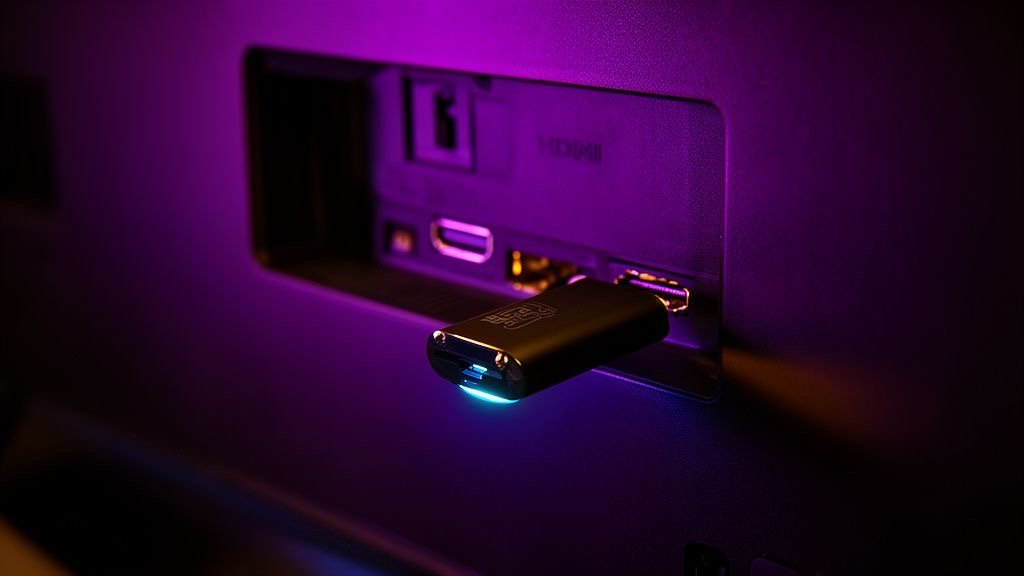
- An Amazon Fire TV Stick (Lite, HD, 4K, 4K Max) or Fire TV Cube
- Your TVPikoma login (Xtream codes: username, password and server URL)
- A stable internet connection — 20 Mbps or more for FHD
Don't have a TVPikoma subscription yet? Pick a plan on the TVPikoma pricing page and you'll receive your login on WhatsApp within minutes.
Step 1: Install the Downloader app
From the Firestick home screen, go to Find → Search, type Downloader and install the free app with the orange icon. Downloader lets you install IPTV players that are not in the Amazon Appstore.
Step 2: Allow apps from unknown sources
- Go to Settings → My Fire TV.
- If you don't see Developer options, open About and click on your device name seven times to enable it.
- Open Developer options → Install unknown apps and turn it on for Downloader.
Step 3: Install an IPTV player
Open Downloader and enter the download link or code for the IPTV player you want to use. The TVPikoma team sends you the correct link for your device on WhatsApp. Popular choices on Firestick are IPTV Smarters Pro (simple and free) and TiviMate (best TV-guide experience). See our best IPTV players for TVPikoma.
Step 4: Add your TVPikoma login
- Open the player and choose Login with Xtream Codes API (or Add playlist → Xtream Codes in TiviMate).
- Enter any name, for example TVPikoma.
- Type your TVPikoma username, password and server URL exactly as received — they are case-sensitive.
- Click Add user or Next and wait for channels, movies and series to load.
Step 5: Optimise your Firestick for TVPikoma
- Use the HDMI extender that came in the box — it improves Wi-Fi reception.
- Connect to 5 GHz Wi-Fi or use an Amazon Ethernet adapter for the most stable TVPikoma streams.
- Clear the cache of your player every few weeks: Settings → Applications → Manage installed applications.
- Turn off data monitoring: Settings → Preferences → Data monitoring.
- Restart the Firestick once a week to free up memory.
Troubleshooting TVPikoma on Firestick
“Invalid username or password” — check for spaces and capital letters, and make sure the server URL includes http:// and the port number.
Channels load but don't play — try another player, or switch the player's stream format setting between HLS and MPEG-TS.
Buffering — follow our 9 TVPikoma buffering fixes or message TVPikoma support on WhatsApp for live help.
Frequently asked questions
Which Firestick is best for TVPikoma?
The Fire TV Stick 4K Max is the best choice for TVPikoma thanks to its faster processor and Wi-Fi 6E support, but every current model works.
Is TVPikoma in the Amazon Appstore?
TVPikoma is a subscription, not an app. You install an IPTV player and log in with your TVPikoma details.
Can I use TVPikoma on two Firesticks?
You can install TVPikoma on both, but one subscription includes one connection, so you can watch on one at a time.