TVPikoma on Samsung & LG Smart TV: Setup Guide
No stick, no box — just your TV. Here's how to get TVPikoma running directly on Samsung, LG and Android-based Smart TVs.
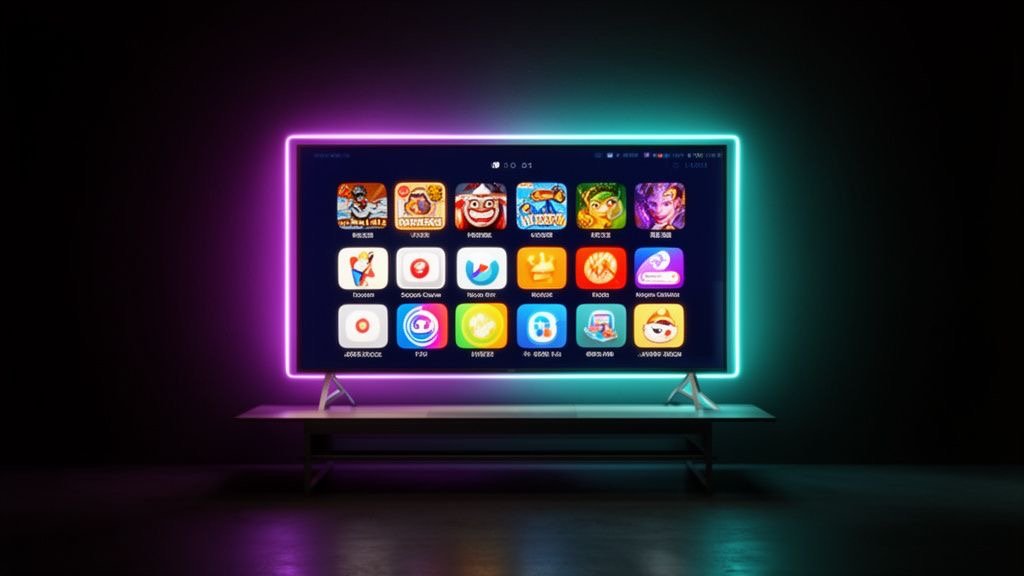
Can I watch TVPikoma on my Smart TV?
Yes. TVPikoma works on almost every Smart TV made in the last six or seven years. You only need an IPTV player app from your TV's app store and your TVPikoma login. The steps depend on your TV's operating system:
- Samsung — Tizen OS
- LG — webOS
- Sony, Philips, TCL, Hisense and others — usually Android TV or Google TV (some Hisense models use VIDAA)
TVPikoma on Samsung Smart TV (Tizen)
- Press Home and open Apps.
- Search for an IPTV player such as IBO Player, Smart IPTV or SS IPTV and install it.
- Open the app. It shows a MAC address and sometimes a device key.
- Send the MAC address to TVPikoma on WhatsApp, or upload your TVPikoma M3U link on the player's website using that MAC address.
- Restart the app — your TVPikoma channels and VOD library appear.
Note: some players charge a small one-time activation fee after a free trial period. This is paid to the app developer, not to TVPikoma.
TVPikoma on LG Smart TV (webOS)
- Open the LG Content Store.
- Install IBO Player, Smart IPTV or SS IPTV.
- Open the app and note the MAC address.
- Add your TVPikoma playlist via the app's website or ask TVPikoma support to help.
- Restart the app and start watching.
TVPikoma on Android TV and Google TV
Android-based TVs give you the most choice. Open the Google Play Store and install TiviMate or IPTV Smarters Pro. Choose Add playlist → Xtream Codes, enter your TVPikoma username, password and server URL, and you're done. This is the same process as on an Android box — see TVPikoma on Android & iPhone.
Smart TV app or streaming stick?
| Smart TV app | Firestick / Android box | |
|---|---|---|
| Extra hardware | None | €30–€70 |
| App choice | Limited | Wide |
| Speed | Depends on TV age | Usually faster |
| Best for | Newer TVs, simple setup | Older TVs, power users |
If your TV is older or its apps feel slow, a Fire TV Stick is an inexpensive upgrade — follow our TVPikoma Firestick guide.
Tips for the best TVPikoma picture on a Smart TV
- Connect the TV to your router with an Ethernet cable if you can — built-in TV Wi-Fi is often weak.
- Turn off motion smoothing for sport if you notice artefacts.
- Choose the FHD or 4K version of a channel when your connection allows it — see TVPikoma internet speed.
- Keep your TV firmware and IPTV app up to date.
Frequently asked questions
Which app is best for TVPikoma on Samsung TV?
IBO Player and Smart IPTV are popular choices for TVPikoma on Samsung Tizen TVs.
Does TVPikoma work on LG webOS?
Yes. Install an IPTV player from the LG Content Store and add your TVPikoma playlist.
Do I need a box to watch TVPikoma?
No. Most Smart TVs can run TVPikoma directly, but a Firestick can be faster on older TVs.